

 Install Chrome extension
- Unlimited Flashcards and Quizzes
- Export to Google Forms & file uploads
- Quizzes, MCQ, surveys, assessments & more
- Perfect for Students, Instructors & General use
One payment. No subscription, no renewal.
Describe the quiz you need or paste your source text. MyQuizGPT generates the questions and answer key, lets you review them, and creates an editable Google Form—without copying each question or writing Apps Script.
By continuing, you agree to our Privacy Policy and Terms of Service.
Google Forms connection is rolling out. This will be available to everyone after our Google review.
Describe the quiz you need or paste the notes, lesson text, or questions you want to use.
Choose the number of questions, generate the quiz with AI, and check the questions and answer key.
Connect Google Forms once, then open the editable quiz in your Drive and make any final changes.
Use MyQuizGPT to turn a topic, instructions, or pasted source text into a multiple-choice Google Forms quiz. The AI drafts the questions, answer choices, and answer key; you review the quiz before opening the editable Form in Google Drive.
This is useful when you are starting from lesson notes or content from a Google Doc, Word document, PDF, Google Sheet, Google Slides presentation, PowerPoint, or CSV file and do not want to rebuild every question manually.
State the subject, audience, difficulty, and any instructions the questions should follow. You can also paste the notes or existing material the quiz should use.
Select the question count and let the AI create the quiz structure, including multiple-choice options and correct answers.
Check the wording, answer choices, and answer key before using the quiz. You can keep the quiz in MyQuizGPT for study and sharing as well.
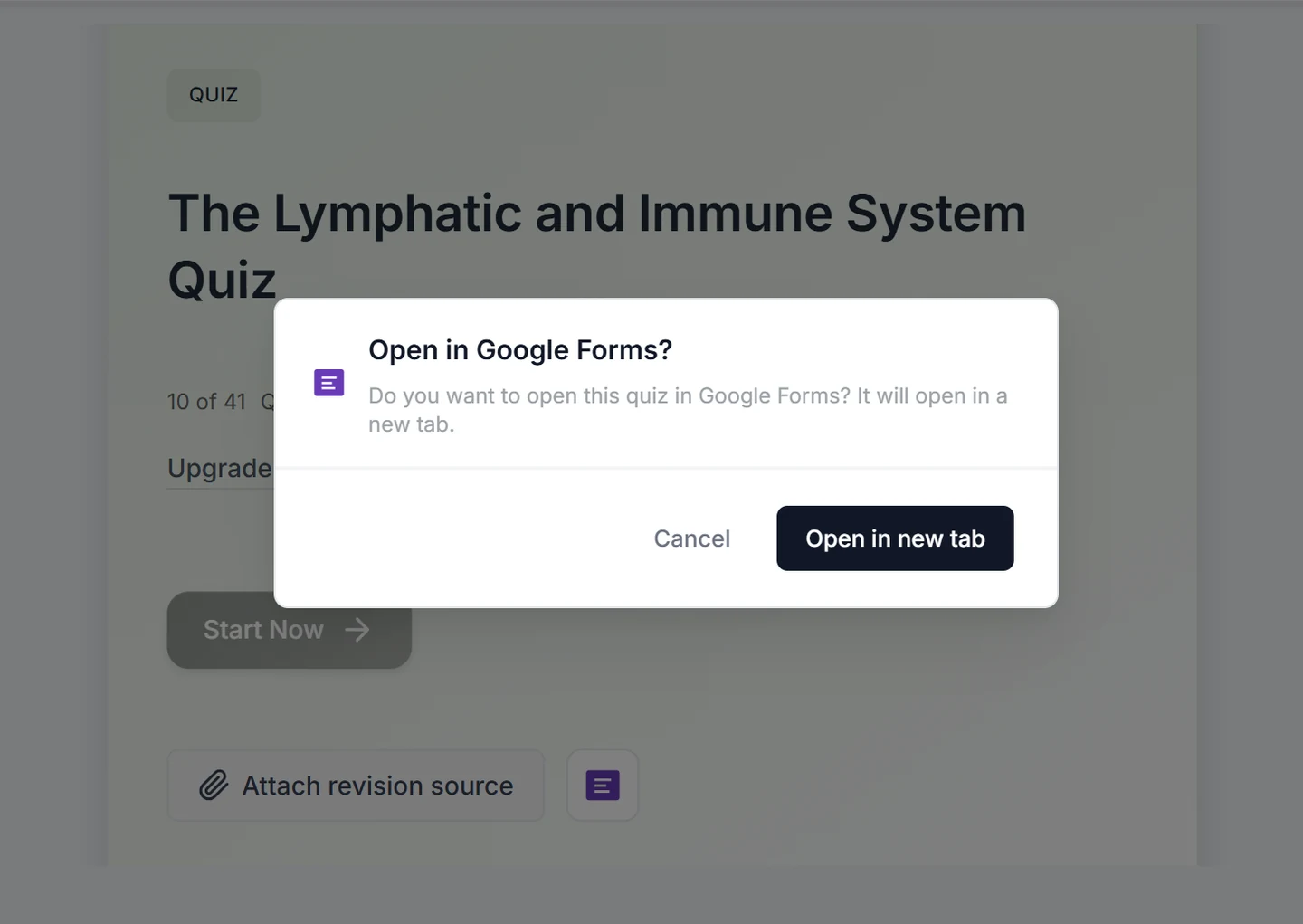
Connect Google Forms once, then open the quiz from its study page. MyQuizGPT creates the matching Form and gives you an edit link so you can make final changes in Google Forms.
The GPT Google Form Quiz Maker Chrome extension puts an AI form builder inside Google Forms. Click the MyQuizGPT icon beside your Google profile to open the sidebar, then generate a new Form or add questions to the Form you already have open.
Open the Form you want to edit, launch the MyQuizGPT sidebar, and describe what you need or upload a supported file. The generated questions are appended to that Form instead of replacing it.
Open Google Forms, launch the sidebar, and enter a prompt or upload a PDF, Word document, or text file. Choose the form type and generate a new Form in Google Drive.
The extension supports more than multiple-choice quizzes, including:
If you prefer a conversational workflow, use the MyQuizGPT custom GPT. Ask for a quiz, provide your topic or source material, and open the generated MyQuizGPT link to review it.
Only need a practice quiz? Create a quiz with ChatGPT instead.
The generated Form remains editable in Google Forms. Review the question wording, answers, points, and settings before publishing, then share it by link, email, Google Classroom, or embed it on a website.
Turn AI-built quizzes into Google Forms for assignments, exit tickets, and practice—without retyping questions.
Share a standard Google Form link for polls and knowledge checks built from the same source quiz in MyQuizGPT.
Practice in MyQuizGPT, then export to Forms when you need to submit through Google Classroom or a shared link.
Synced forms land in a dedicated folder so everything you export stays easy to find in your Google account.
Yes. MyQuizGPT can generate a multiple-choice quiz from your instructions or source text, including answer choices and an answer key, and then create an editable Google Form in your Drive.
Generate and review the quiz, connect Google Forms once, and open the quiz study page. MyQuizGPT creates the matching Form and gives you a link to edit it in Google Forms.
No. MyQuizGPT handles everything—from questions to answer options—so your quiz is automatically formatted and ready inside Google Forms.
Yes. After the quiz is synced, you can fully edit the Google Form just like any other form in your Drive.
You can create quizzes for free with MyQuizGPT. Google Forms syncing includes a limited number of exports on free accounts; Premium unlocks syncing your full library. See pricing for details.
The web generator creates multiple-choice quizzes with answer choices and correct answers. The Chrome extension also supports true/false and mixed quizzes, short-answer tests, surveys, feedback forms, and registration forms.
Absolutely. Teachers can quickly generate quizzes and sync them to Google Forms for assignments, tests, or practice exercises.
Yes. MyQuizGPT only requests the permissions needed to create and manage Google Forms in your Drive and does not access unrelated data.
Yes. Once your quiz is in Google Forms, you can easily share it via link, email, or embed it for students or team members.
We create a folder named “MyQuizGPT — Google Forms” in your Drive and move new forms there after they’re created.