
- Unlimited Flashcards and Quizzes
- Export to Google Forms & file uploads
- Quizzes, MCQ, surveys, assessments & more
- Perfect for Students, Instructors & General use
One payment. No subscription, no renewal.
Ctrl + P only prints the part of the chat that has loaded — on a long conversation that is a few pages out of forty. ChatGPT to PDF Ultra Exporter saves the entire thread in one click, every message included, with no scrolling first.
Free to start · Chrome, Edge & Brave · files built in your browser.
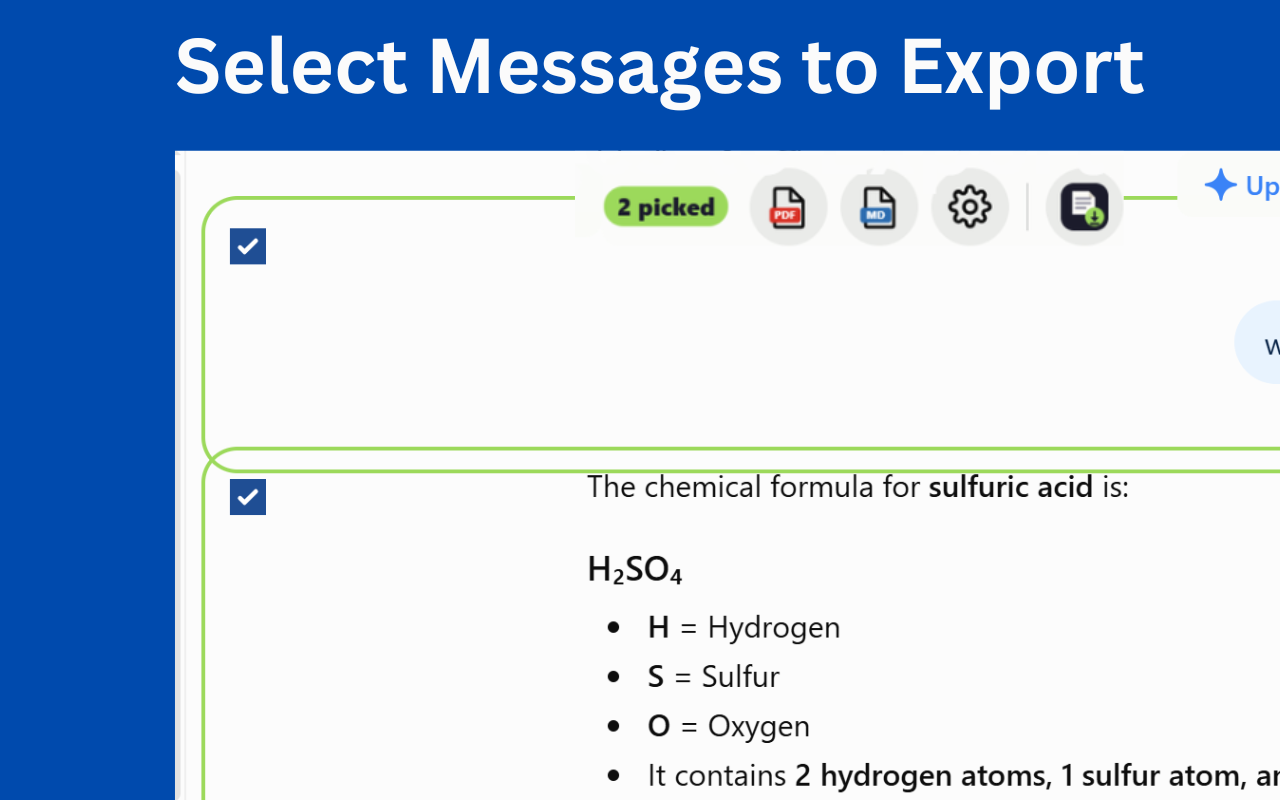
To print an entire ChatGPT conversation: install ChatGPT to PDF Ultra Exporter, open the chat, and click the PDF icon in the toolbar at the top right. The whole conversation downloads as a formatted file — open it and press Ctrl + P to print it or save it as a PDF.
You can also print straight from the browser with Ctrl + P — but only after scrolling all the way up to the very first message. ChatGPT does not keep a long conversation in the page all at once, so whatever you have not scrolled past does not exist to your browser and will not print. On a chat of a few hundred messages that can mean printing five pages out of forty.
That is the difference between the two routes: your browser prints what is on the page, while the extension asks ChatGPT for the conversation itself.
Long chats would be slow to render, so ChatGPT uses a virtualised message list: as a message scrolls out of view it is removed from the page, and it is put back when you scroll to it again. At any moment only a window of your conversation actually exists in the browser.
Printing reads the page. So does Select All, and so does every screenshot tool. All of them capture the window, not the conversation — which is why a printout of a long chat comes out short, and why copy-paste seems to skip the middle.
No scrolling to the top, and no squinting at the page count wondering whether anything got left out.
Add ChatGPT to PDF Ultra Exporter, then refresh ChatGPT.
Any chat, however long — you do not need to scroll it first.
The toolbar sits at the top right, next to Share.
Press Ctrl+P and pick your printer, or Save as PDF.
Every message is in there, including the ones you never scrolled past.
The browser route costs nothing and needs no setup. It just stops being reliable once a chat gets long.
It asks ChatGPT for the conversation directly instead of reading the page, so every message is included whether you scrolled past it or not.
No scrolling. Works the same on a chat of 500 messages.
Free and instant for a short chat. Unreliable past about fifty messages.
Each of these is fixed in the export file, and none of them is fixed by the browser's print dialog.
Wide tables get clipped at the paper edge instead of wrapping. The export sizes them to the page.
Anything past the right edge of a code block simply isn't printed. Long lines wrap in the file instead.
ChatGPT's image links expire. The export embeds pictures in the file so they still open next month.
The browser prints the whole interface. The export contains the conversation and nothing else.
There is no print button in the ChatGPT app, but iOS has one built in.
For a long conversation, exporting on a desktop and emailing yourself the file is genuinely faster than fighting the scroll on a phone.
On mobile
Open chat → Share → Print
One click, every message included — no scrolling to the top and hoping.
Free to start · exports run in your browser.